First extraction in the web UI
The service ships a single-page web UI at its root, so you can extract metadata without curl. In this tutorial you extract metadata from one file and read the result.
The screenshots were taken from a service with the default settings: only ExifTool and MediaInfo are enabled. Yours may show more tools.
1. Open the UI
Start the service as in First extraction with curl and open http://localhost:8000/.
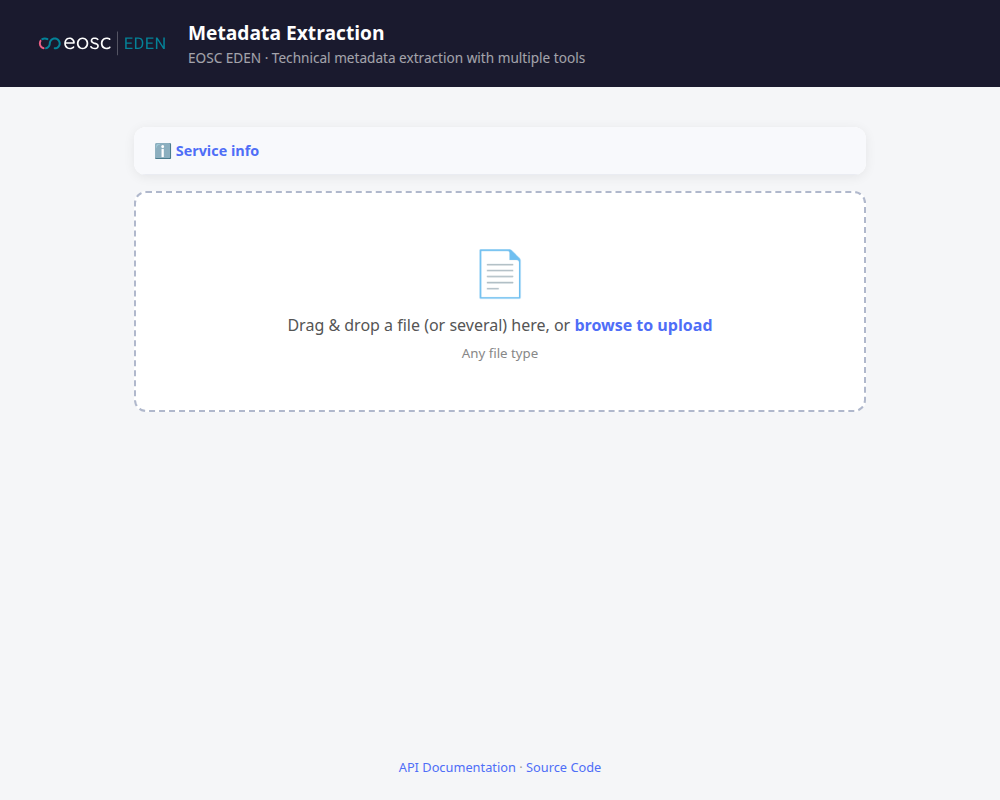
- Service info (collapsed) lists the enabled tools and the deployment limits.
- The drop zone is where you choose your files.
2. Choose a file
Drop a file on the drop zone, or click browse to upload. You can select several files; at most max_files_per_request are accepted (see /api/v1/limits/). Nothing is sent yet: the Files to extract section lists each file.
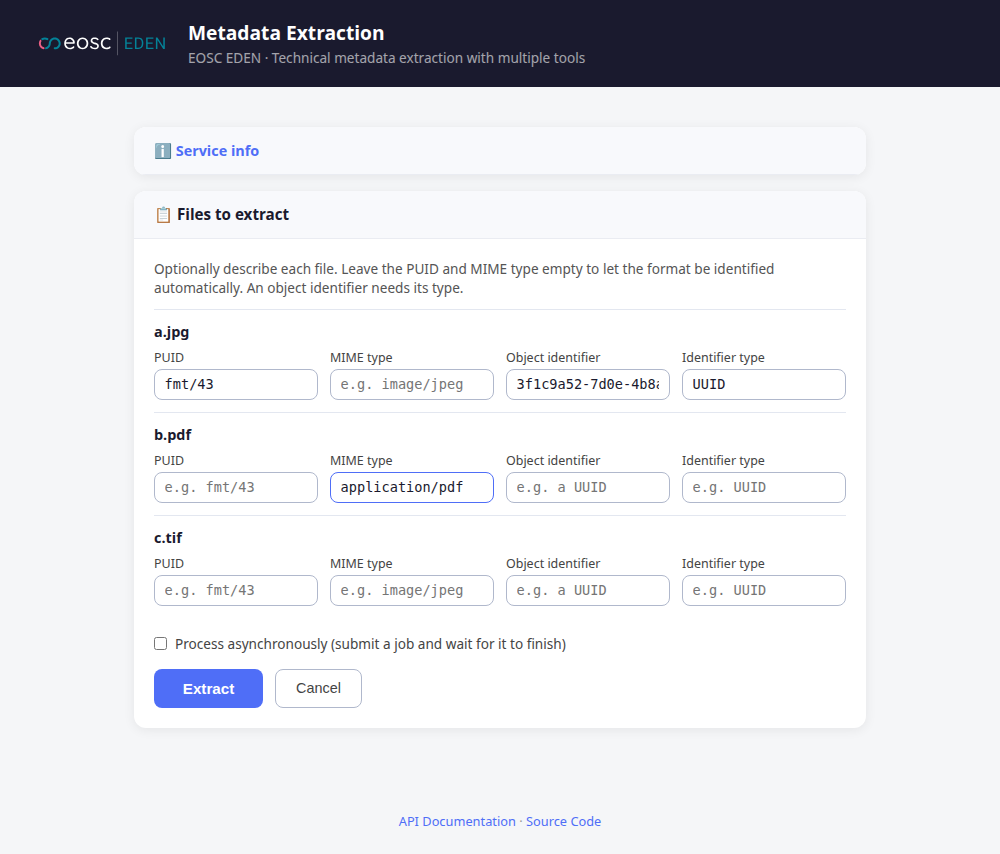
For each file you can optionally fill in:
- PUID or MIME type, to name the file's format yourself. Leave them empty to let MES work it out.
- Object identifier and Identifier type, to give the file's PREMIS object an identifier. Fill in both or neither.
Process asynchronously submits a job (or one job per file) and waits for it to finish. It is only shown when MES_ASYNC_ENABLED is true.
Choose Extract to start, or Cancel to go back and pick other files.
3. Read the result
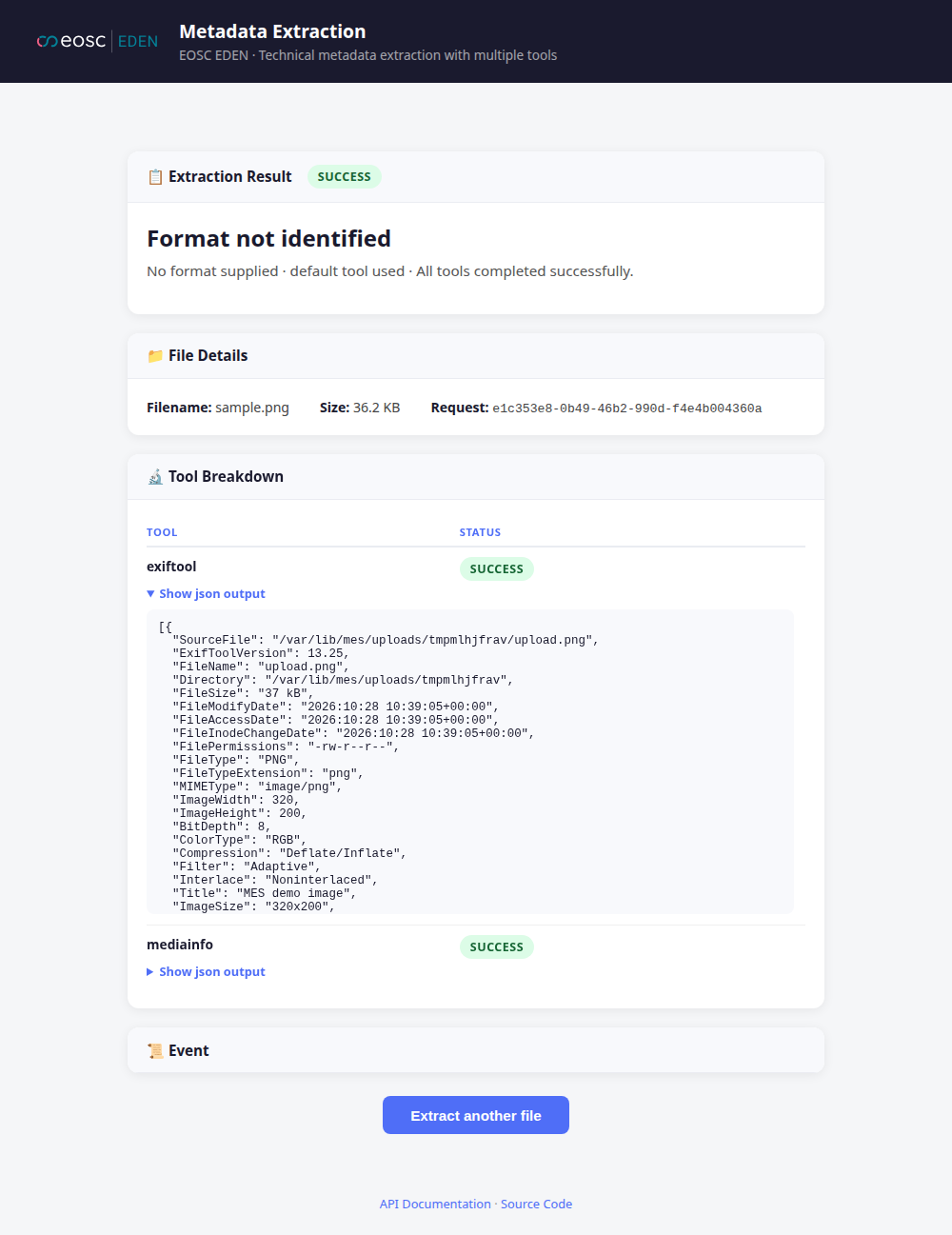
From top to bottom:
- Extraction Result shows the overall status and the format. Without a PUID, a MIME type or FFIS, the format is shown as "Format not identified", as here. The extraction still runs.
- File Details shows the filename, its size and the
request_id, which you can find in the service logs. - Tool Breakdown lists each tool with its status. Show json output (or text output) reveals the tool's unmodified output.
- Failed tools, errors and warnings get their own cards, and Event holds the PREMIS extraction event.
4. Extract another file
Choose Extract another file to return to the start.
Footer
The footer links to the Swagger UI (/api/v1/docs/), to the source code and, when MES_DOCS_URL is set, to this documentation. MES_FOOTER_TEXT adds a short note, for example a funding acknowledgement.
The UI only talks to the REST API; everything it shows is available there.